
JaCoCo is an open-source library created by the EclEmma team for measuring and reporting code coverage in an application. It is quite popular among the variety of code coverage libraries for Java out there.
In this blog, we will be talking about how to set up JaCoCo with Maven Project. To understand JaCoCo’s code coverage capabilities, we need to have a code sample.
Sample Maven Project#
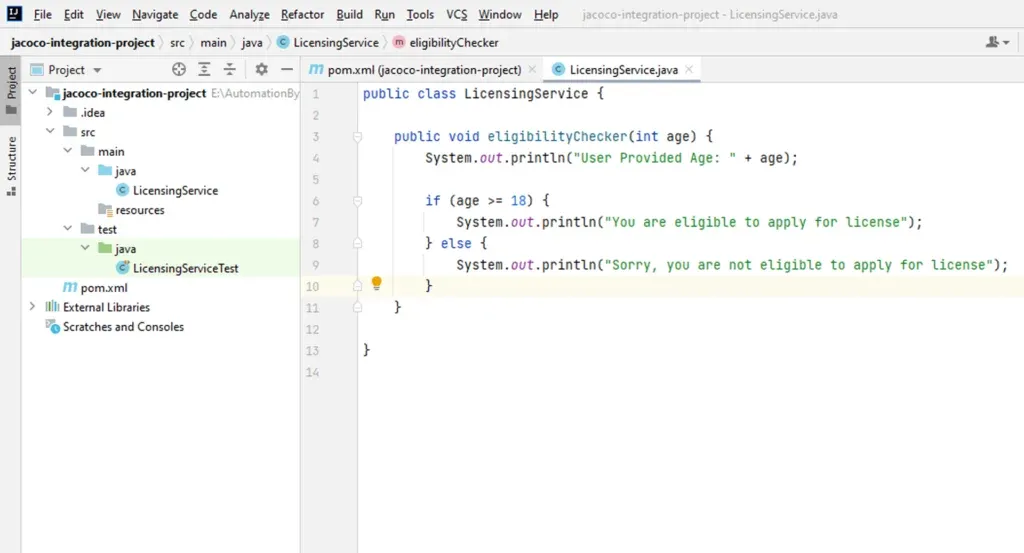
Here, we are going to use a simple class named ‘LicensingService’ consisting of a simple Java Function that prints if the user is eligible for a license or not based on the provided age and ‘LicensingServiceTest’ consisting of Unit Tests.
public class LicensingService {

    public void eligibilityChecker(int age) {
         System.out.println("User Provided Age: " + age);
         if (age >= 18) {
              System.out.println("You are eligible to apply for license");
         } else {
              System.out.println("Sorry, you are not eligible to apply for license");
        }
    }

}
Now, we need to add JUnit Tests against which the coverage will be generated.
public class LicensingServiceTest {

     @Test
     public void licenseEligibilityChecker() {
          LicensingService licensingService = new LicensingService();
          licensingService.eligibilityChecker(18);
     }

}Configuring Jacoco Maven Plugin#
Now to configure Jacoco with the project, we need to declare this maven plugin in our pom.xml file:
<build>
    <plugins>
        <plugin>
            <groupId>org.jacoco</groupId>
            <artifactId>jacoco-maven-plugin</artifactId>
            <executions>
                <execution>
                    <goals>
                        <goal>prepare-agent</goal>
                    </goals>
                </execution>
                <execution>
                    <id>report</id>
                    <phase>prepare-package</phase>
                    <goals>
                        <goal>report</goal>
                    </goals>
                </execution>
            </executions>
        </plugin>
    </plugins>
</build>The JaCoCo Java agent will collect coverage information when maven-surefire-plugin runs the tests. It will write it to target/jacoco.exec by default. Read more ↗.
Executing the Tests and Creating the Coverage Reports#
Execute the Tests using mvn clean test
On execution of tests, Jacoco agent will automatically instrument to the code, thus, it will create a coverage report in binary format in the target directory – target/jacoco.exec.
The generated report can further be interpreted through two different ways.
1. Display Interactive Report in IntelliJ#
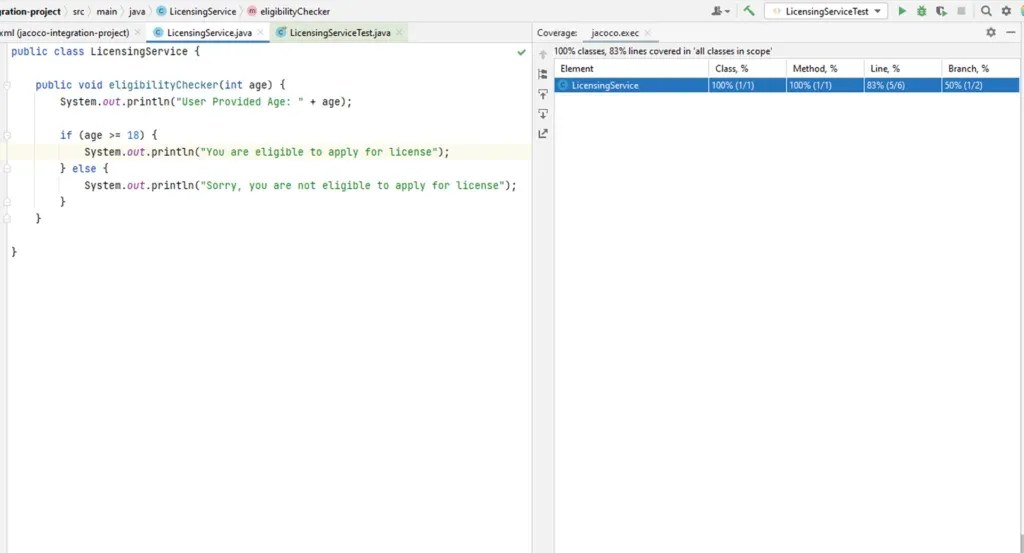
IntelliJ provides an interactive coverage interface that can be utilized to analyze line-by-line coverage of complete code. The jacoco.exec binary file generated after the execution of tests can simply be accessed in the IntelliJ Coverage window using the below steps.
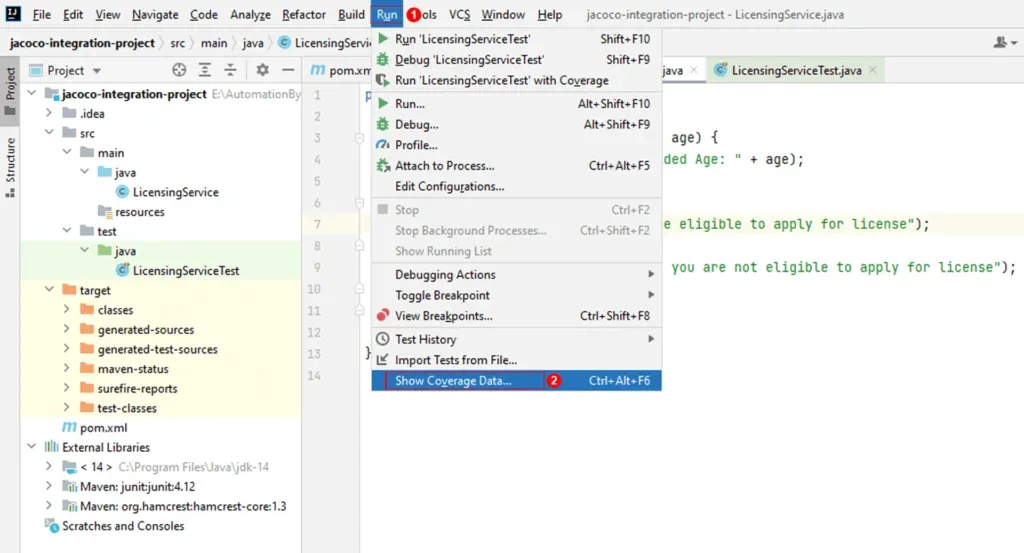
Step 1 – Click on Run -> Show Coverage Data. [Shortcut : Ctrl + Alt + F6]
A new Coverage Suite Dialog box will appear.
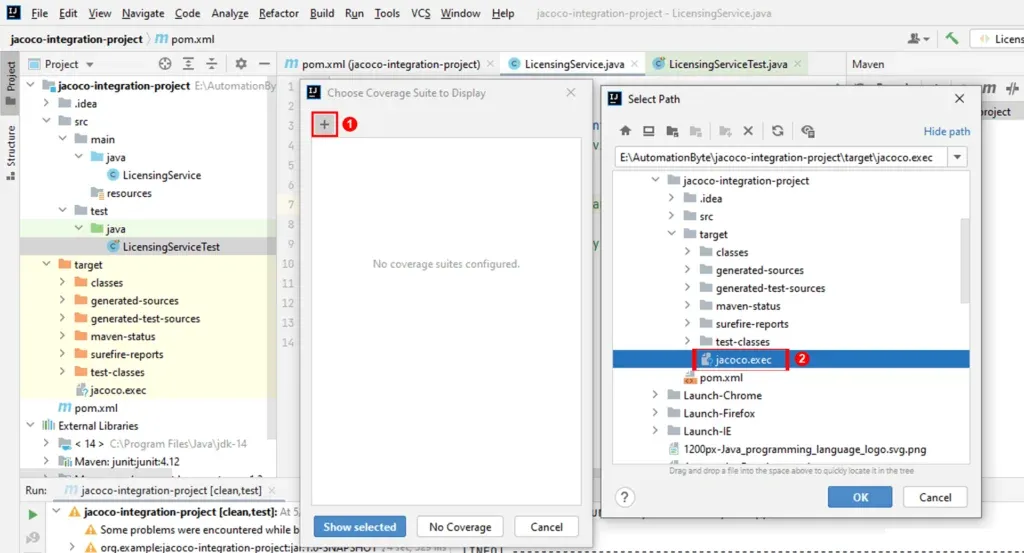
Step 2 – Click on (+) add button in the Coverage Suite Dialog box. Select the jacoco.exec binary file and click Show Selected.
You will now be able to view the line-by-line coverage.
2. Interpret Binary Report to HTML format#
The generated jacoco.exec can be interpreted to the HTML, CSV, XML Report format which is human readable. To achieve this, we can simply run the below maven command.
bash mvn jacoco:report
Please Note: This step can be completely avoided by adding the above goal during the test execution itself.
Example: mvn clean test jacoco:report
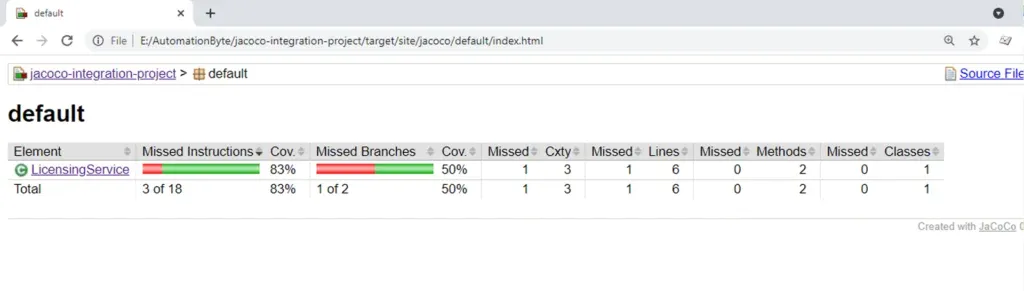
We can now take a look at the target/site/jacoco/index.html page to see what the generated report looks like.
Related posts
Java Spring Boot Docker Deployment with Oracle Made Simple
Learn how to setup docker deployment of your Java Spring Boot application including Oracle Database dependency easily.
Instrument JaCoCo Code Coverage agent with WebLogic
Learn how to instrument JaCoCo code coverage agent with WebLogic server.
Automate MySQL Database Backups on Linux
Learn how to automate MySQL database backups on Linux using a simple shell script. Ensure your data is safe and secure with scheduled backups.