Blog
Oracle XE In Docker On Windows: An Ultimate Guide
Learn how to set up Oracle XE on Windows using Docker. Follow this step-by-step guide to create a local database environment and streamline development.

Setting up Oracle XE in your local development environment can significantly speed up application development by giving you a powerful relational database to work with. This guide provides a straightforward approach to setting up Oracle XE using Docker on a Windows system, followed by creating a schema to start your development journey.
Why Use Oracle XE with Docker for Local Development?#
Oracle XE is a lightweight, free version of Oracle Database that caters to the needs of developers and small-scale applications. Running it in Docker adds the benefit of containerization, allowing:
- Easy setup and cleanup.
- Isolation from your host environment.
- Seamless portability across systems.
Prerequisites#
Before we dive into the setup, ensure you have the following installed on your Windows machine:
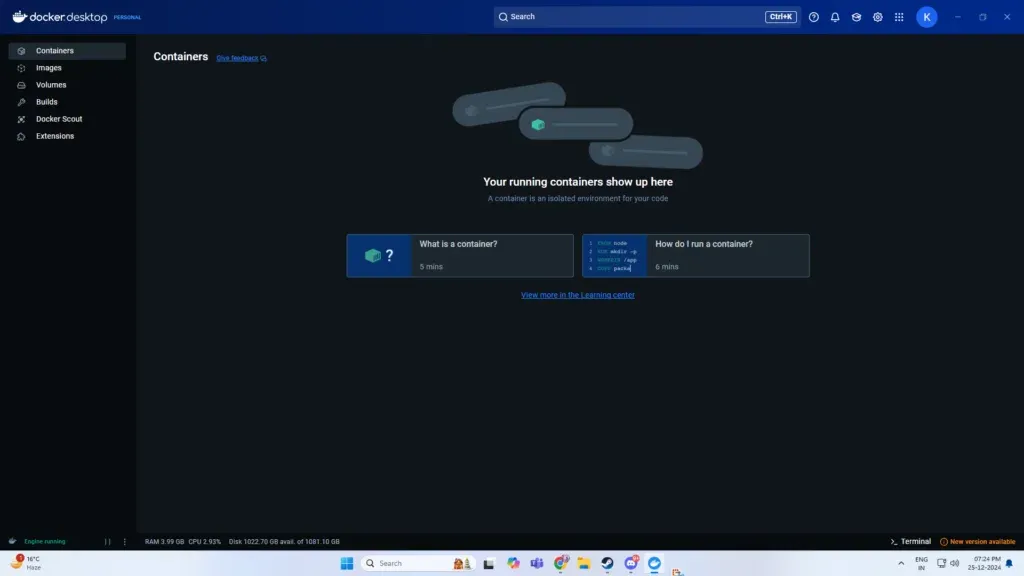
- Docker Desktop: Download and install Docker. ↗
- Windows Subsystem for Linux (WSL): Enable WSL if not already configured.
Containerize An Oracle Database#
Step 1: Pull the Oracle XE Docker Image#
The first step is to pull the Oracle XE Docker image from Oracle’s repository or Docker Hub. Open a terminal and run:
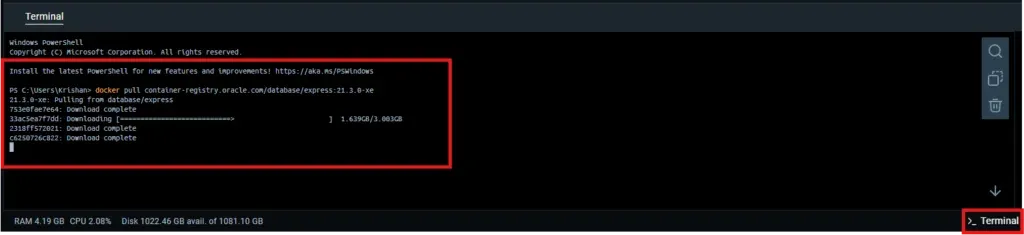
docker pull container-registry.oracle.com/database/express:21.3.0-xeThis command downloads the Oracle XE 21c image to your local system.
Step 2: Run the Oracle XE Container#
Create and run a Docker container using the image you just pulled. Execute the following command:
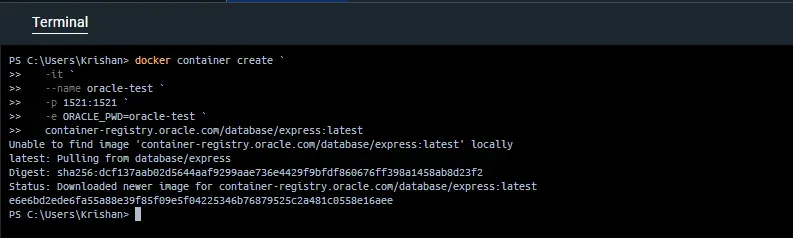
docker container create `
   -it ` # Run the container in interactive mode
   --name [container-name] `  # Name of the container
   -p [host-port]:1521 `  # Map the port from host to container for DB
   -e ORACLE_PWD=[custom-pass] `  # Password for default user
container-registry.oracle.com/database/express:[version] # ImageExplanation:
- —name oracle-xe-container: Names your container for easier reference.
- -p 1521:1521: Maps the database’s port to your local machine.
- -e ORACLE_PWD=your_password_here: Sets the password for the default SYS and SYSTEM users.
After running the command, Oracle XE will initialize inside the container. It may take a few minutes to start up.
Step 3: Verify the Container is Running#

To ensure the Oracle XE container is up and running, execute:
docker psLook for a container named oracle-xe-container in the list. If it’s not running, check the logs for any issues:
docker logs oracle-xe-containerStep 4: Connect to the Oracle XE Database#
You can connect to Oracle XE using any database client, such as SQL*Plus or Oracle SQL Developer. Use the following connection details:
- Host: localhost
- Port: 1521
- Service Name: XEPDB1
- Username: SYS
- Password: The password you set with ORACLE_PWD
- Role: SYSDBA
Oracle XE database container should be up and running now. Once the database is accessible, we need to create schema.
Create an Oracle XE Schema#
Step 1: Access the Oracle Database Container#
First, connect to the running container:
docker exec -it <container_name_or_id> bash
Step 2: Log in to SQL*Plus#
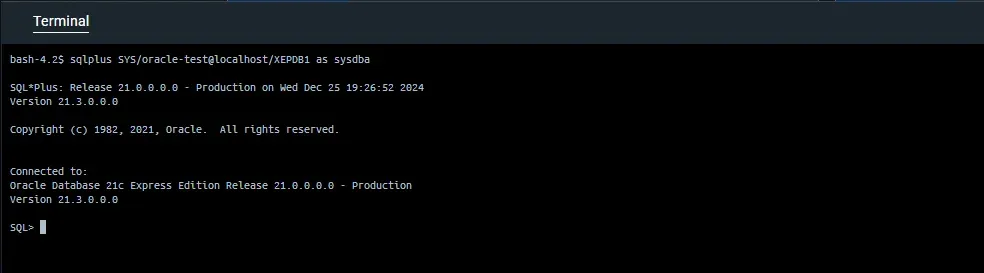
Inside the container, use the sqlplus utility to log in as the default database user (e.g., SYS or SYSTEM):
sqlplus SYS/<password>@localhost/XEPDB1 as sysdbaReplace <password> with the SYS password you provided when running the container. XEPDB1 is the default pluggable database name for Oracle XE.
Step 3: Create a New User (Schema)#
A schema in Oracle is effectively a user. To create one:
CREATE USER your_schema_name IDENTIFIED BY your_password;Step 4: Grant Privileges to the User#
To allow the user to connect to the database and create objects:
GRANT CONNECT, RESOURCE TO your_schema_name;Optionally, you can grant additional privileges as needed, such as:
GRANT DBA TO your_schema_name;Step 5: Connect to the New Schema#
Exit SQL*Plus by typing exit, and log back in as the new user:
sqlplus your_schema_name/your_password@localhost/XEPDB1Step 6: Test the Schema#
You can now create tables and other objects in the new schema:
CREATE TABLE Test (
    id NUMBER PRIMARY KEY,
    name VARCHAR2(100)
);Related posts
MySQL Master-Slave Replication for Data Redundancy
Learn how to set up MySQL master-slave replication to ensure data redundancy and high availability in production environments.
Java Spring Boot Docker Deployment with Oracle Made Simple
Learn how to setup docker deployment of your Java Spring Boot application including Oracle Database dependency easily.